Styling a vector layer
Admin users may add multiple styles to a vector layer based the values of the layer's feature attributes. Users can toggle between the styles via the map legend.
These features are only available for users with admin or edit permissions.
Uniform styling (one color for all features)
If you do not wish to set the color of features based on the values of their attributes, you may set a single color for the layer.
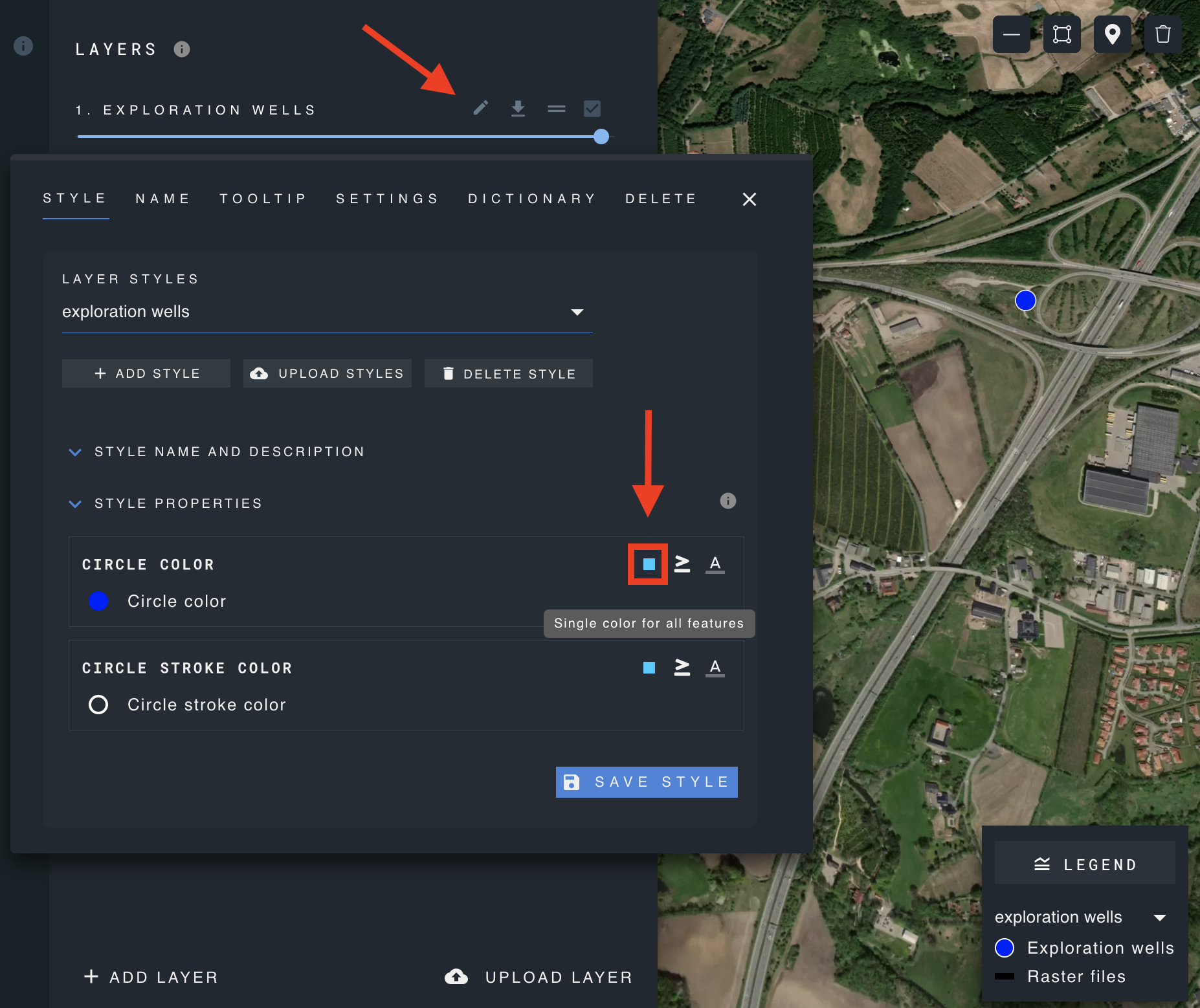
To modify the color for all attributes:
- Click on the edit layer icon for the desired layer, select the 'Styles' tab, and open the 'Style Properties' section.
- Click on the square color selector to choose a color for the features.
- Save the changes.
Numeric range styling
Some feature attributes may have a numeric value, such as an attribute which has a value in metres. In this case, a user can create a "numeric range" style to assign colors to particular numeric ranges (e.g., for the attribute "height", features with values between 1 and 2 metres will be displayed as green, while 2 and 4 meters will be displayed as red).
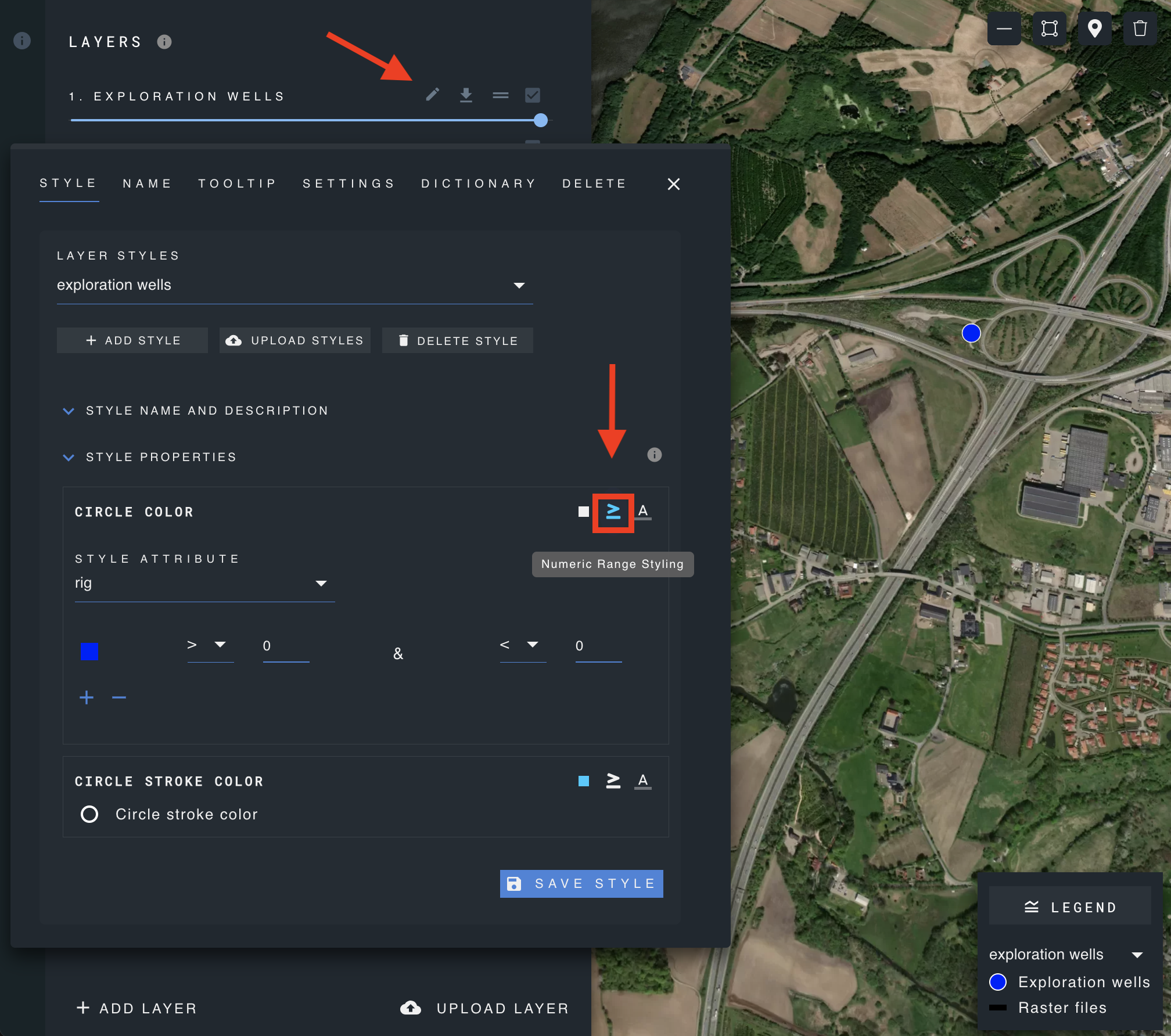
To style attributes based on a numeric range:
- Click on the edit layer icon for the desired layer, select the 'Styles' tab, and open the 'Style Properties' section.
- On the right side, select "Numeric Range Styling."
- Choose the attribute you wish to style from the dropdown menu.
- Add one or more rows to define the desired ranges.
- Create numeric ranges and assign a color to each range.
- Save the changes.
Feature attribute styling
If a particular feature attribute has a limited number of possible values, you may create a style in which each possible value is assigned a color. For example, for the attribute "bear_species", the value "brown bear" is assigned the color brown, "black bear" is assigned the color black, and "polar bear" is assigned the color "white".
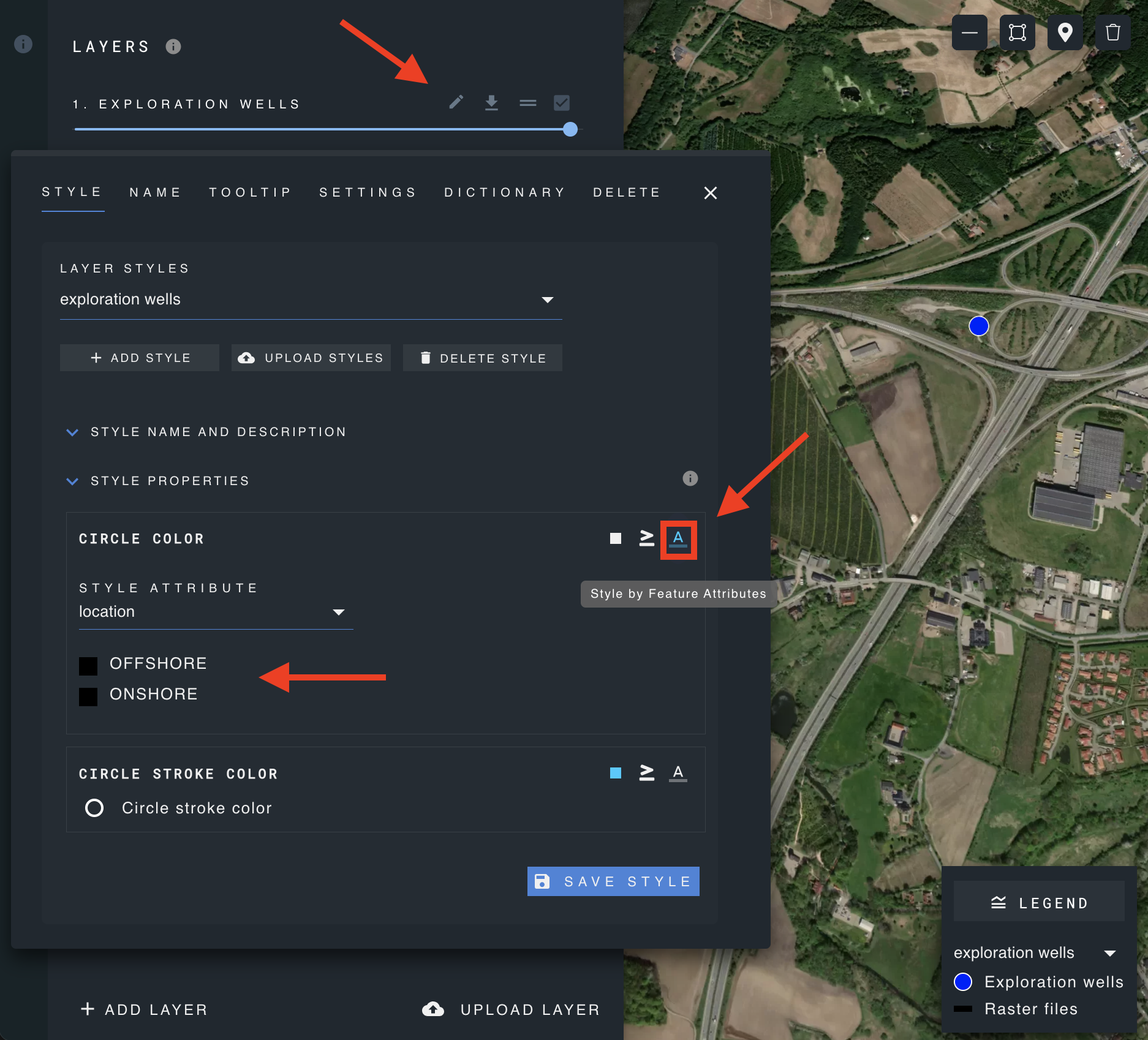
- Click on the edit layer icon for the desired layer, select the 'Styles' tab, and open the 'Style Properties' section.
- On the right side, select the icon for style by "Feature Attributes".
- Choose the attribute you wish to base the style on from the dropdown menu.
- A list of possible values for the selected attribute will appear. Assign a color to each attribute.
- Save the changes.
Upload layer styles
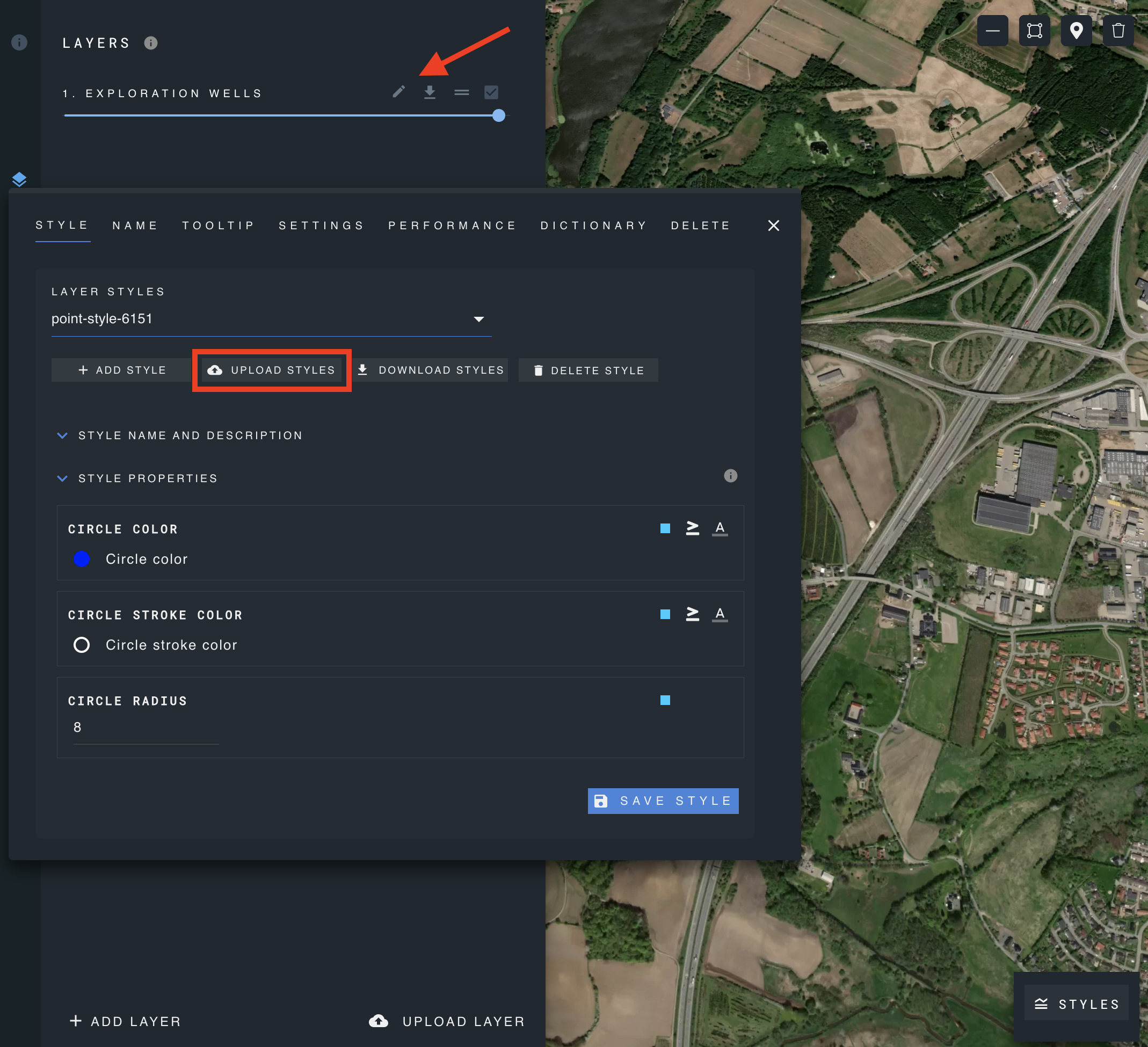
You may modify layer style in bulk by uploading a spreadsheet file.
- Click on edit layer.
- Select upload styles.
- Select file to upload, it must be on csv format.
Spreadsheet structure
| name | style_property | style_attribute_slug | style_type | style |
|---|---|---|---|---|
| Land class1 | fill-color | lc_c1 | attribute | ["match",["get","lc_c1"],"treed","#33a02c","nontreed","#d8b13e","water","#1f78b4","#9c9c9c"] |
| Land class1 | fill-outline-color | null | uniform | "black" |
| Species | fill-color | spc | attribute | ["match",["get","spc"],"Bw","#eeeeee","By","#f0d41d","CE","#51d9a3","NA","#1f78b4","Mh","#72d572","OC","#33a02c","OH","#ff7f00","Sb","#656565","Sx","#9c9c9c","#1f78b4"] |
| Species | fill-outline-color | null | uniform | "black" |
| Tree height | fill-color | tree_ht | numeric_range | ["case",["all",[">=",["get","tree_ht"],1],["<",["get", "tree_ht"],12]],"#ffffff",["all",[">=",["get","tree_ht"],12],["<",["get", "tree_ht"],12.7]],"#ffbfbf",["all",[">=",["get","tree_ht"],12.7],["<",["get", "tree_ht"],13.3]],"#ff8080",["all",[">=",["get","tree_ht"],13.3],["<",["get", "tree_ht"],14]],"#ff4040",["all",[">=",["get","tree_ht"],14]],"#ff0000","#1f78b4"] |
| Tree height | fill-outline-color | null | uniform | "black" |
Spreadsheet requires valid column titles: name, style_property, style_attribute_slug, style_type, style.
Requirements for each column:
- style_attribute_slug (*): must correspond to an existing attribute. For style types numeric_range or attribute is mandatory to fill style_attribute_slug column.
- style_property (*): accepts circle-radius, circle-opacity, circle-color, circle-stroke-width, circle-stroke-opacity, circle-stroke-color, fill-opacity, fill-outline-color, fill-color.
- style_type (*): accepts only uniform, numeric_range, attribute.
- style (*): requires a value to modify the attribute styles.
(*) Mandatory column, cannot be an empty value.
Download styles
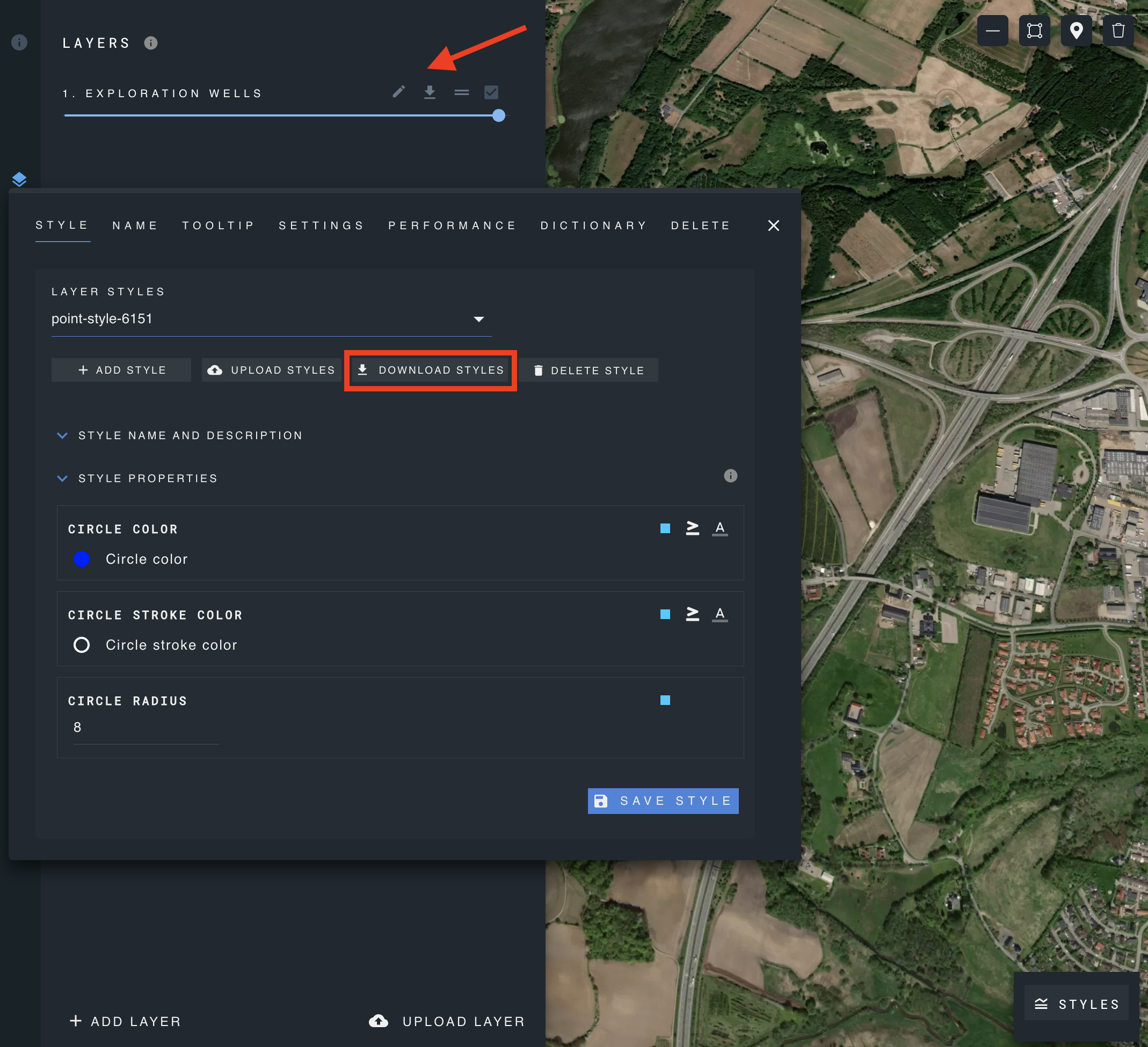
Download styles from a layer.
- Click on edit layer.
- Select dowload styles.
- A csv file will start downloading in your browser.