Attributes
A feature may contain multiple attributes (also known as "properties").
An attribute is a key value pair such as {species: "orchid"} (where "species" is the attribute and "orchid" is the attribute value).
Attributes should be consistent across all features in a vector layer, while their values may differ between features. For example, in one feature the value for "species" might be "orchid", and in a second feature the value might be "rose".
Visit geojson.org or geojson.io to see examples of features in GeoJSON format, one of the numerous file formats which users may upload to Strato Maps.
These features are only available for users with admin or edit permissions.
Add a new attribute
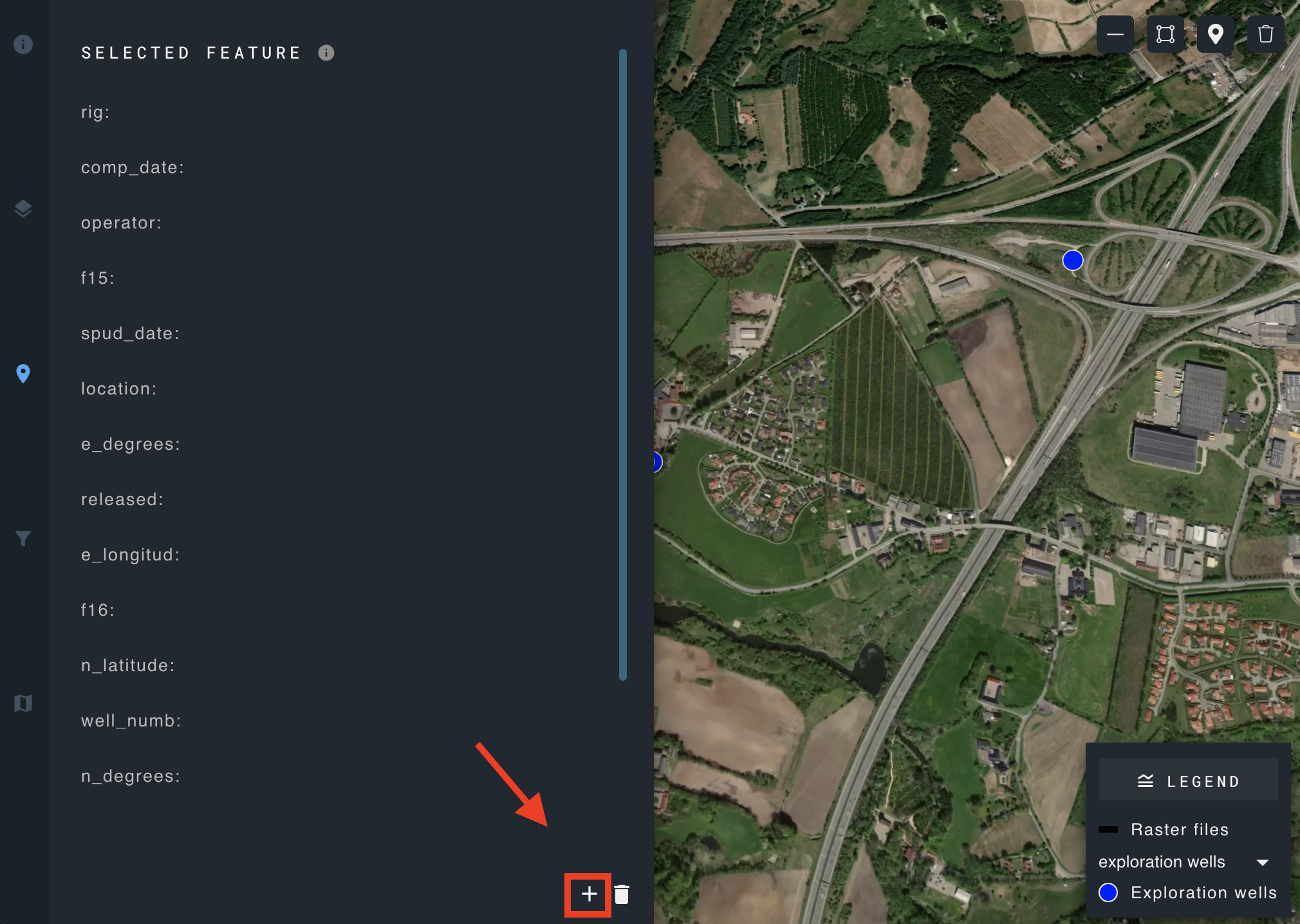
Click the add attribute icon in the lower right corner of the selected feature panel.
Edit attribute
Hover over the attribute you wish to modify, and the edit icon will appear on the right.

Click to open the edit attribute panel.
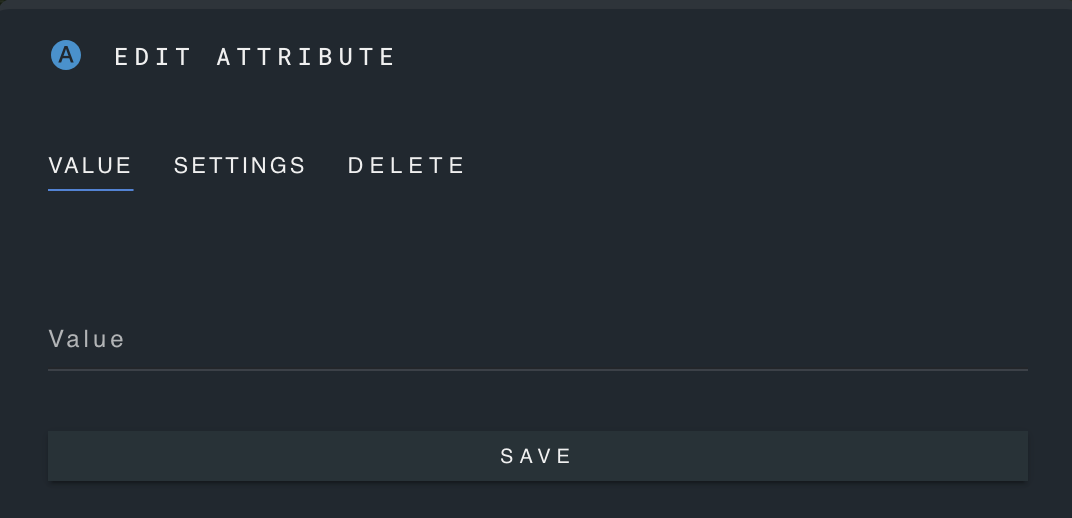
Update the value and save the changes.
Update display name and description
Click the "settings" tab of the edit attribute panel.
Modify display name and description of the selected attribute and save the changes.
Select a unit
Add unit measurements to your attributes.
Open the drop-down menu to view the available unit options. If your desired unit is not included, create a new unit.
Create a new unit
To create a new unit, click the icon next to the select unit menu.
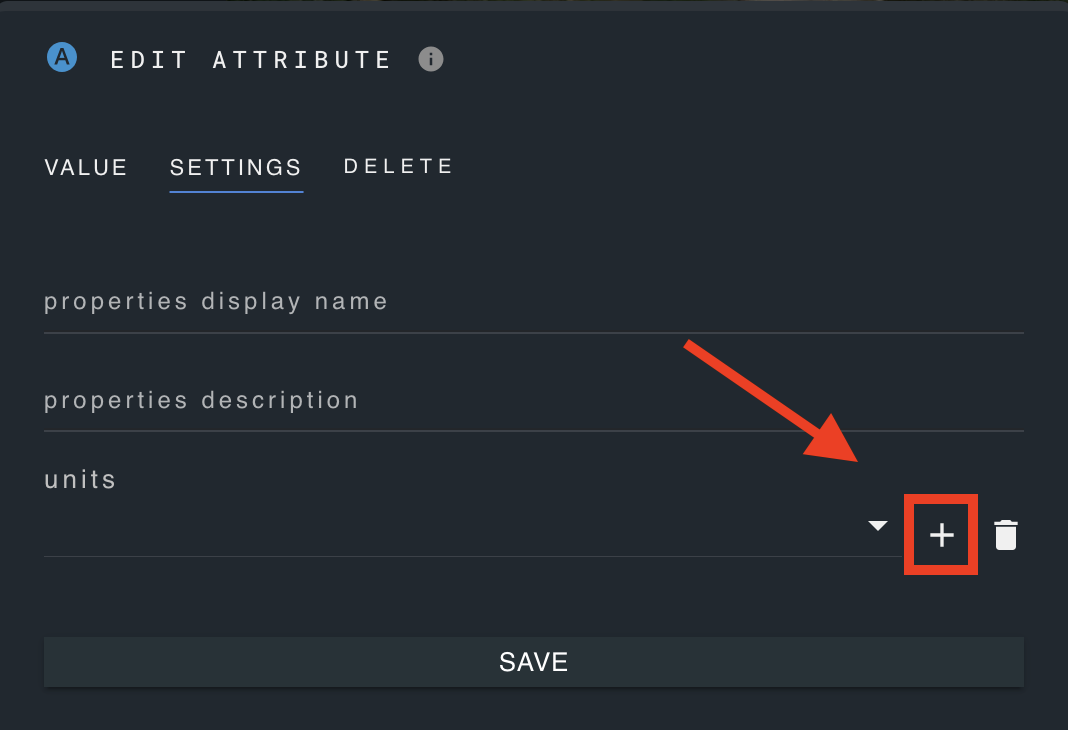
Input the unit name and abbreviation, and designate as metric or imperial.
Delete a unit
Locate the delete icon positioned to the right of the units.
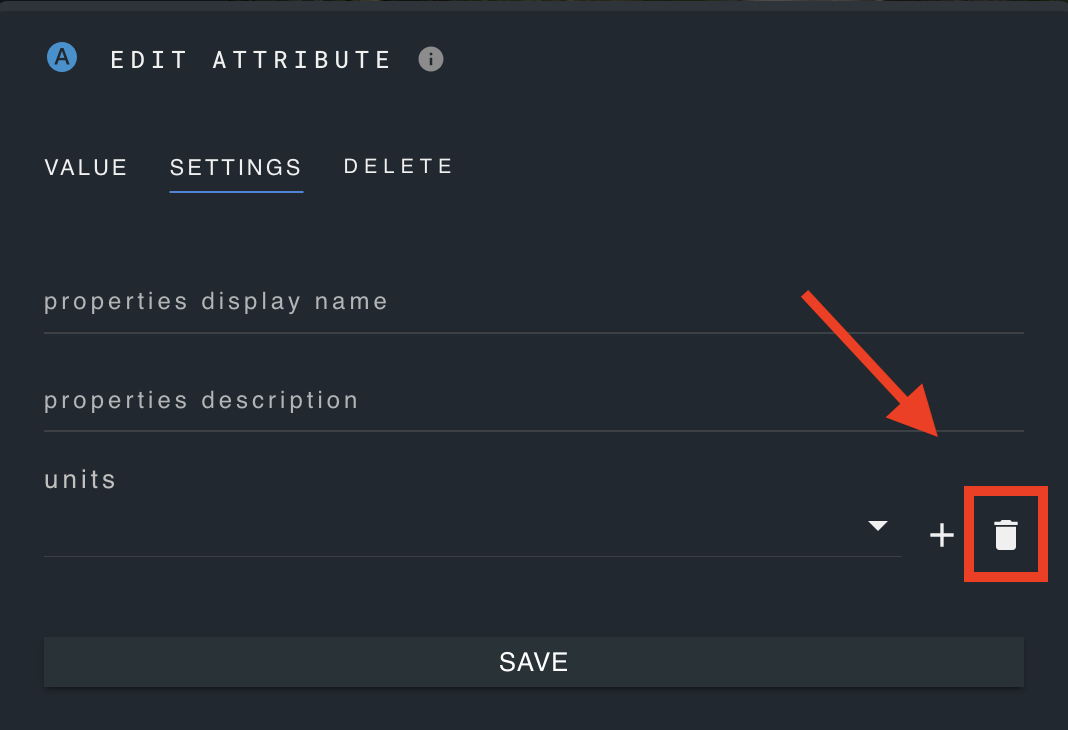
Choose the unit you wish to delete and confirm deletion.
Delete an attribute
Open the edit attribute panel of the attribute you wish to delete.
Click on the "delete" tab and confirm deletion.
Careful: this will delete the attribute for all features of the layer.