Layer Settings
These features are only available for users with admin or edit permissions.
Update layer name and description
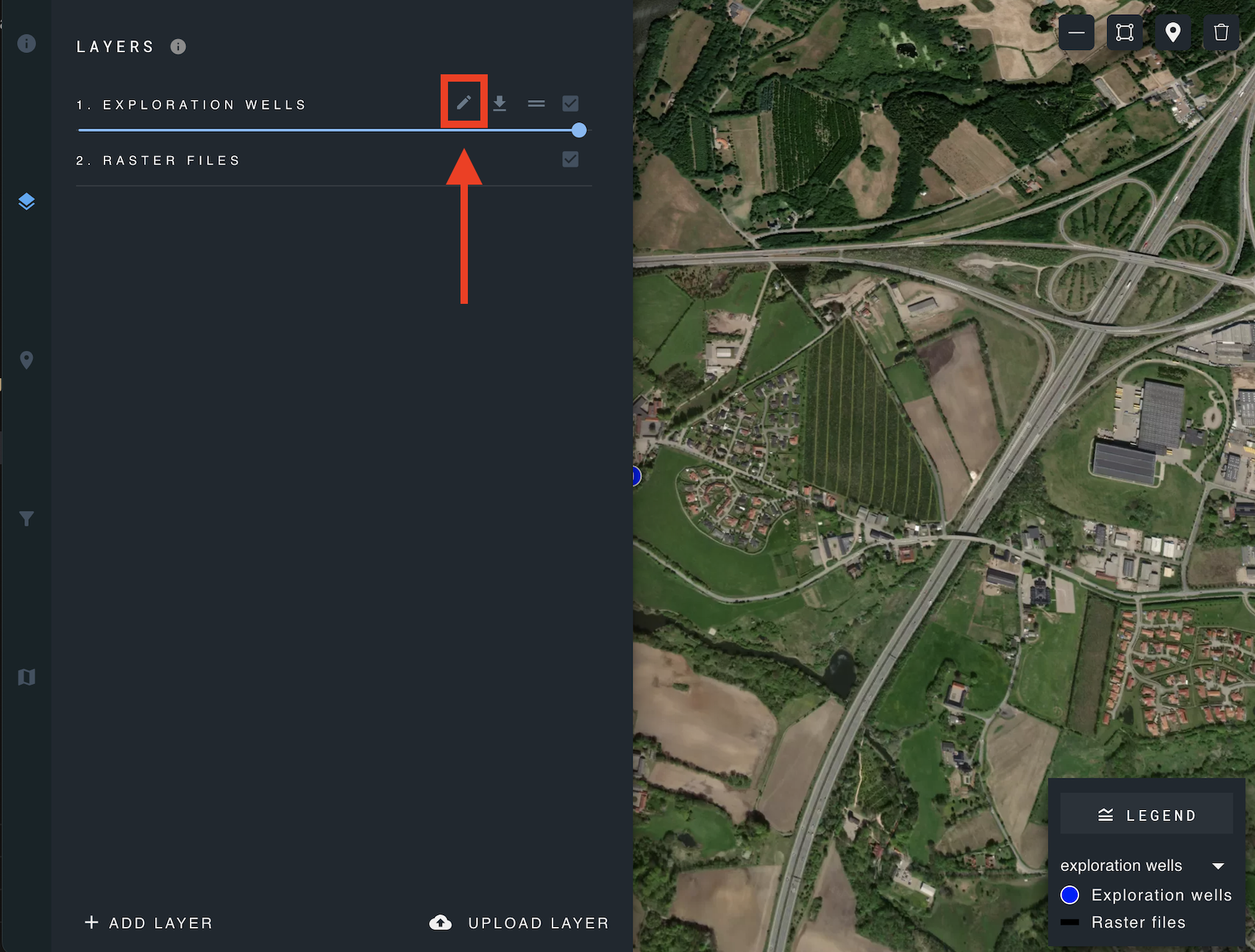
To change the layer name or description, open the edit layer modal.
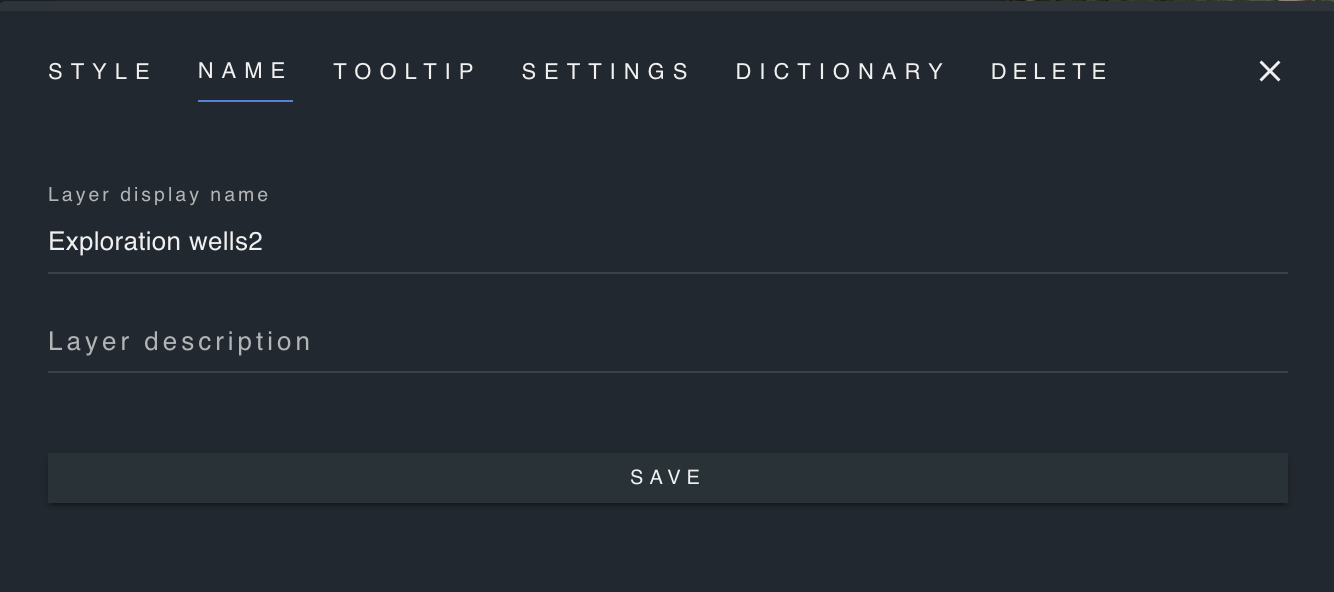
Click the "Name" tab, and modify the layer name and description.
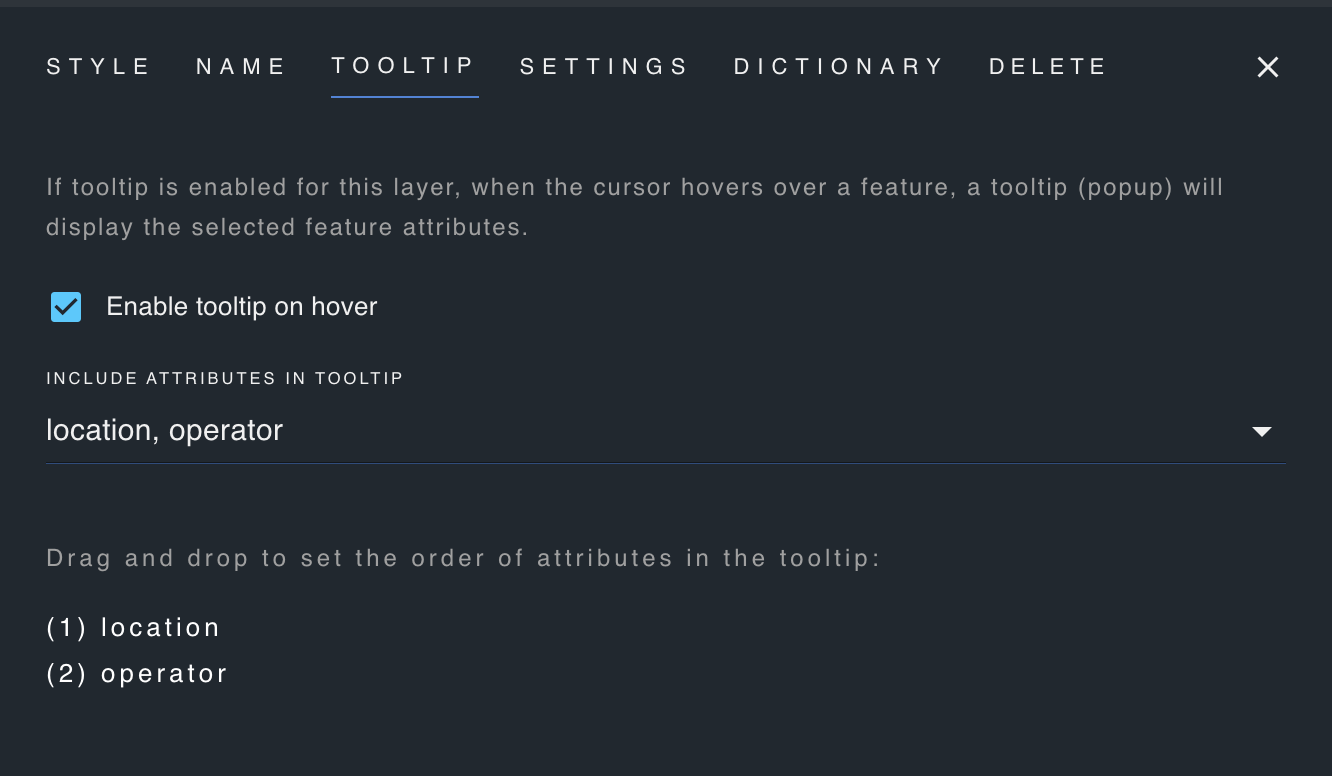
Enable tooltip
If tooltip (popup) is enabled, when the cursor hovers over a feature, a tooltip containing the selected feature attributes will appear.
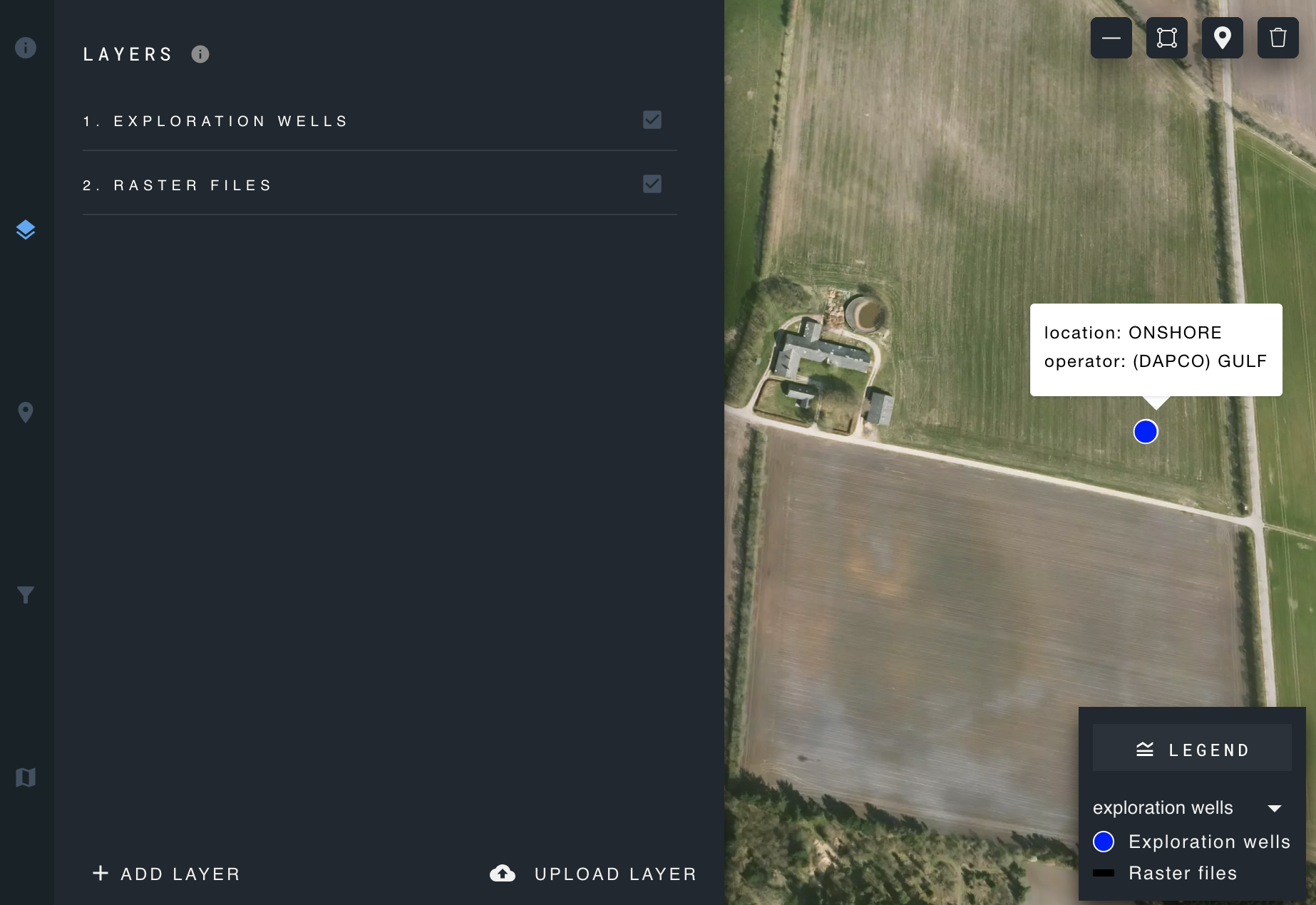
Choose which attributes to include in the tooltip and the order in which they will be displayed.
Other settings
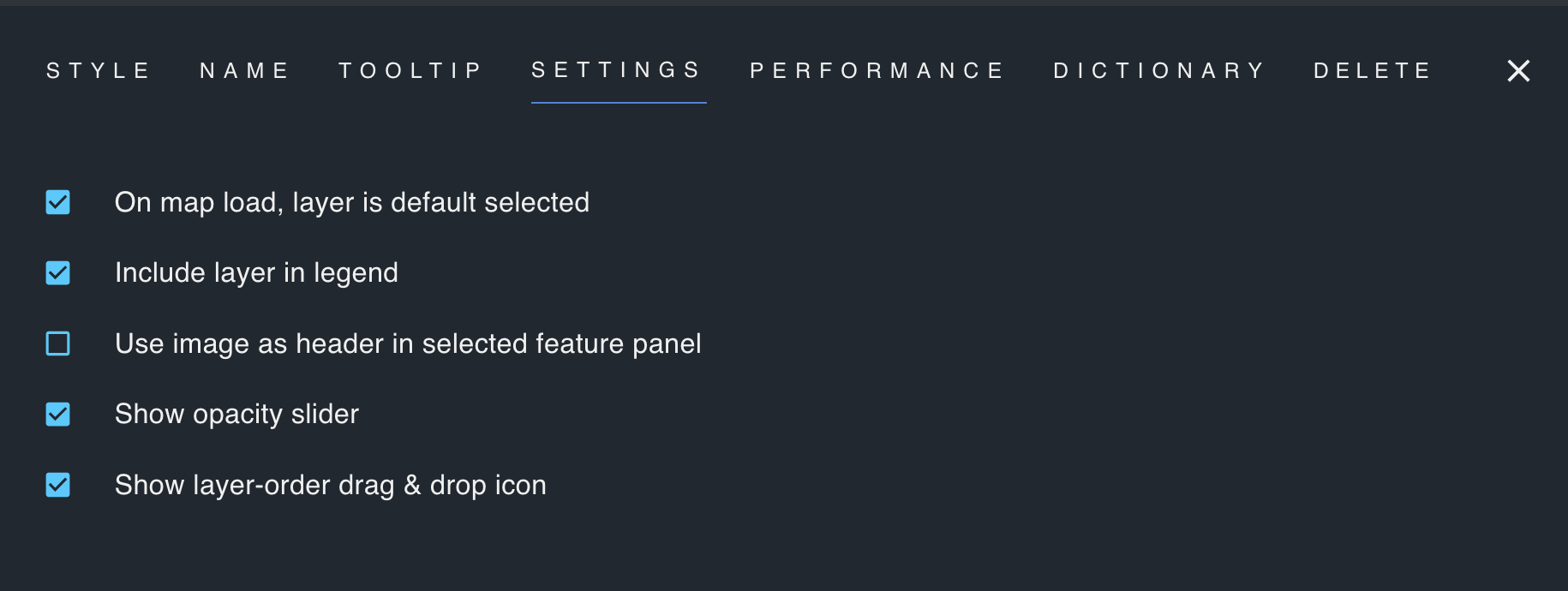
On map load, layer is default selected: When the map is loaded, this layer is displayed on the map.
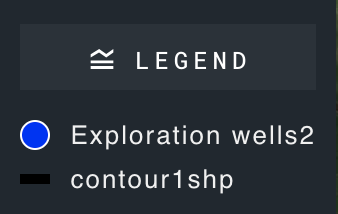
Include layer in legend: Display the layer's name and styles in the map legend.
Use images has header in selected feature panel: For features which include images as attribute values, when the feature is selected, display any images at the top of the selected features panel.
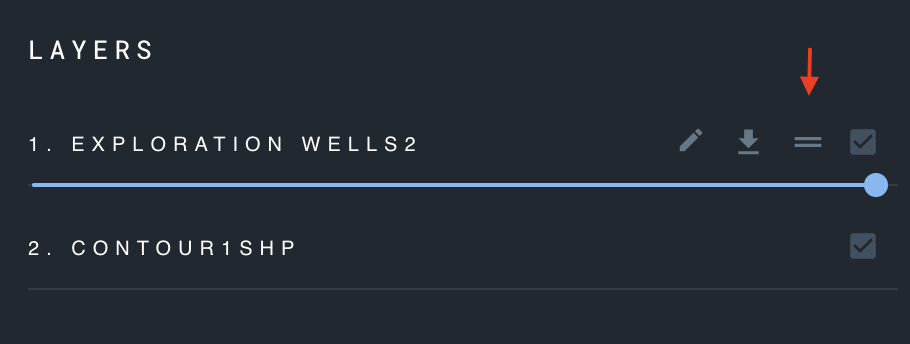
Show opacity slider: Show or hide the opacity bar for adjusting layer opacity.
Show layer-order drag & drop icon: Show or hide the drag & drop icon for the current layer, used for reordering layers on the map and in the layers panel.
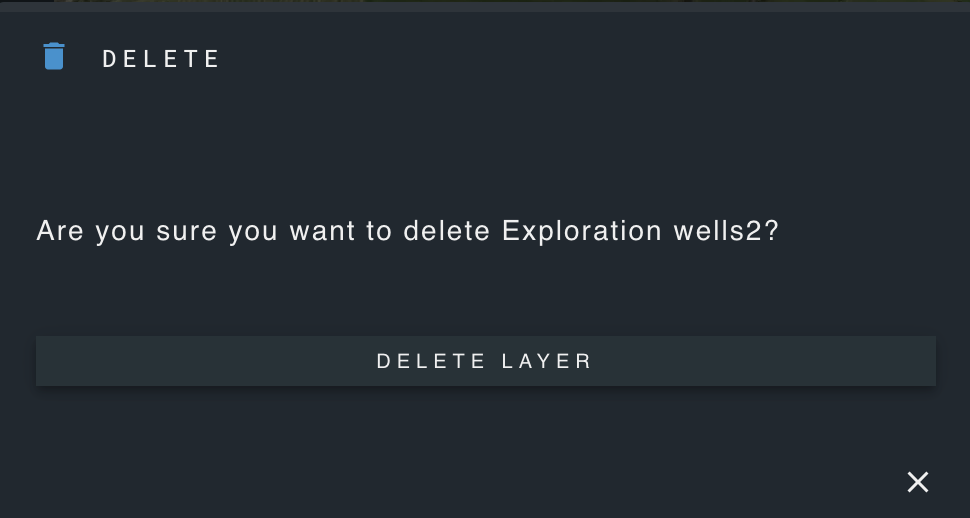
Delete a layer
Click "Delete layer" and confirm deletion.