Map configuration
These features are only available for users with admin or edit permissions.
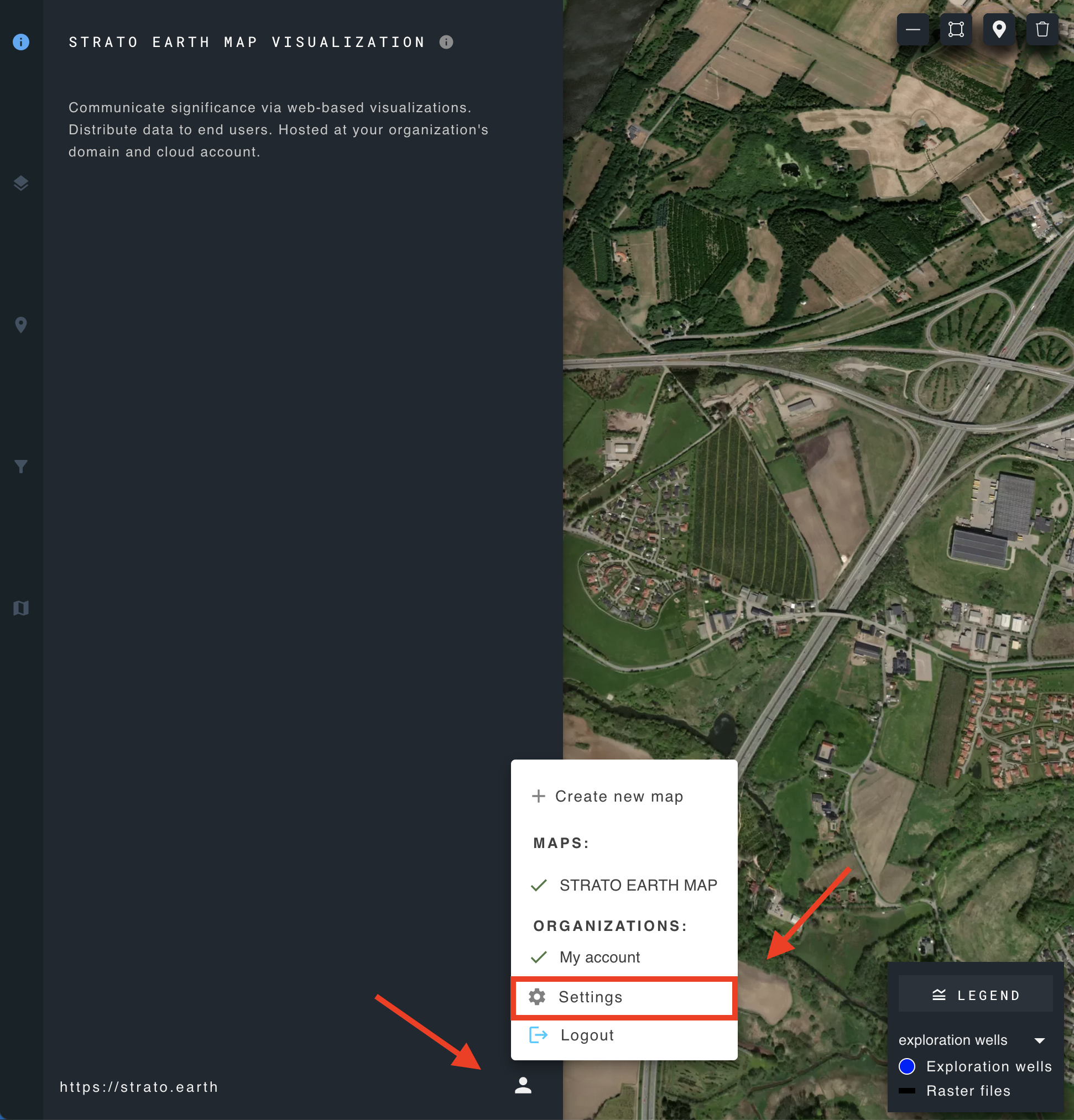
To access the user interface configuration, navigate to the user menu icon and choose settings.
User interface configuration
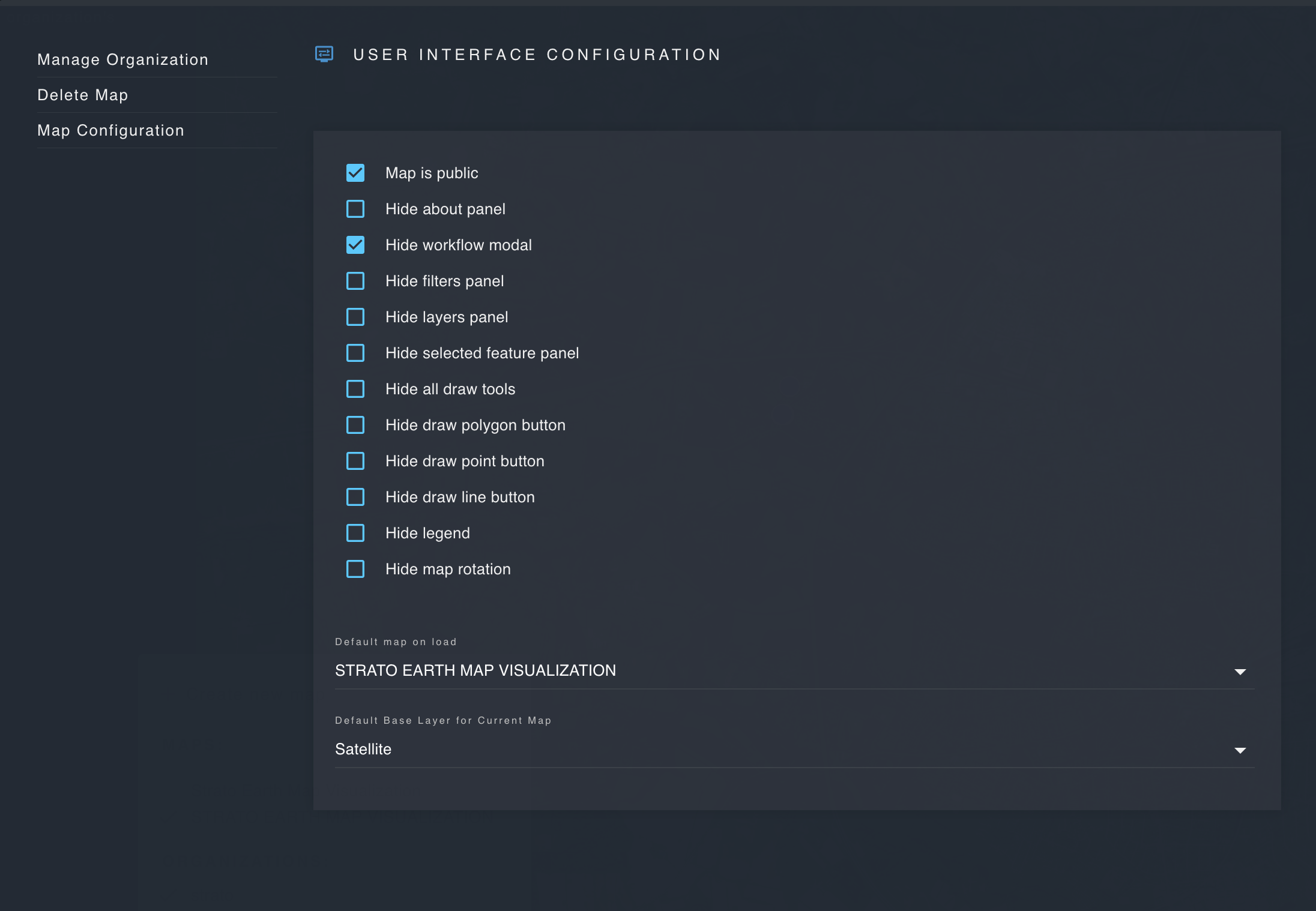
- Map is public:
Make a map public so that it can be viewed by anyone who visits the domain where the application is hosted.
- Hide workflow modal:
Enable or disable the workflows panel.
- Hide filters panel:
Enable or disable the filters panel.
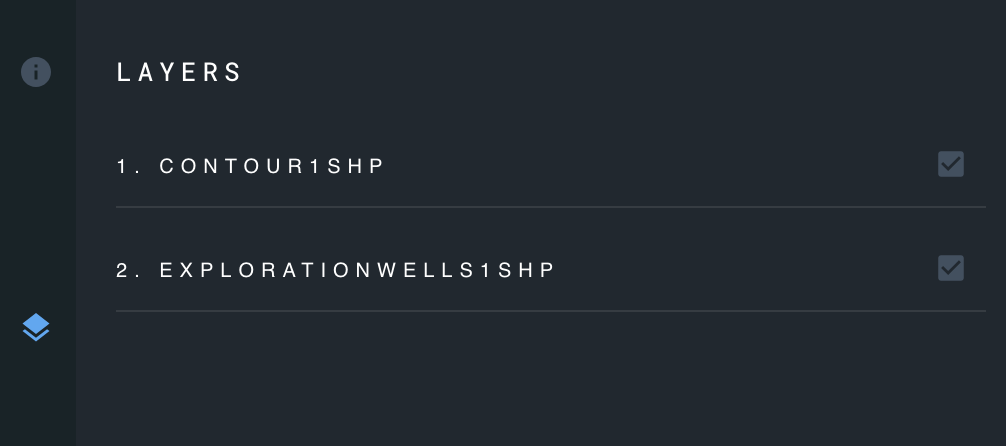
- Hide layers panel:
Enable or disable the layers panel.
- Hide selected feature panel:
Enable or disable the selected features panel.
- Hide all draw tools:
Enable or disable the draw tools used for creating new features.
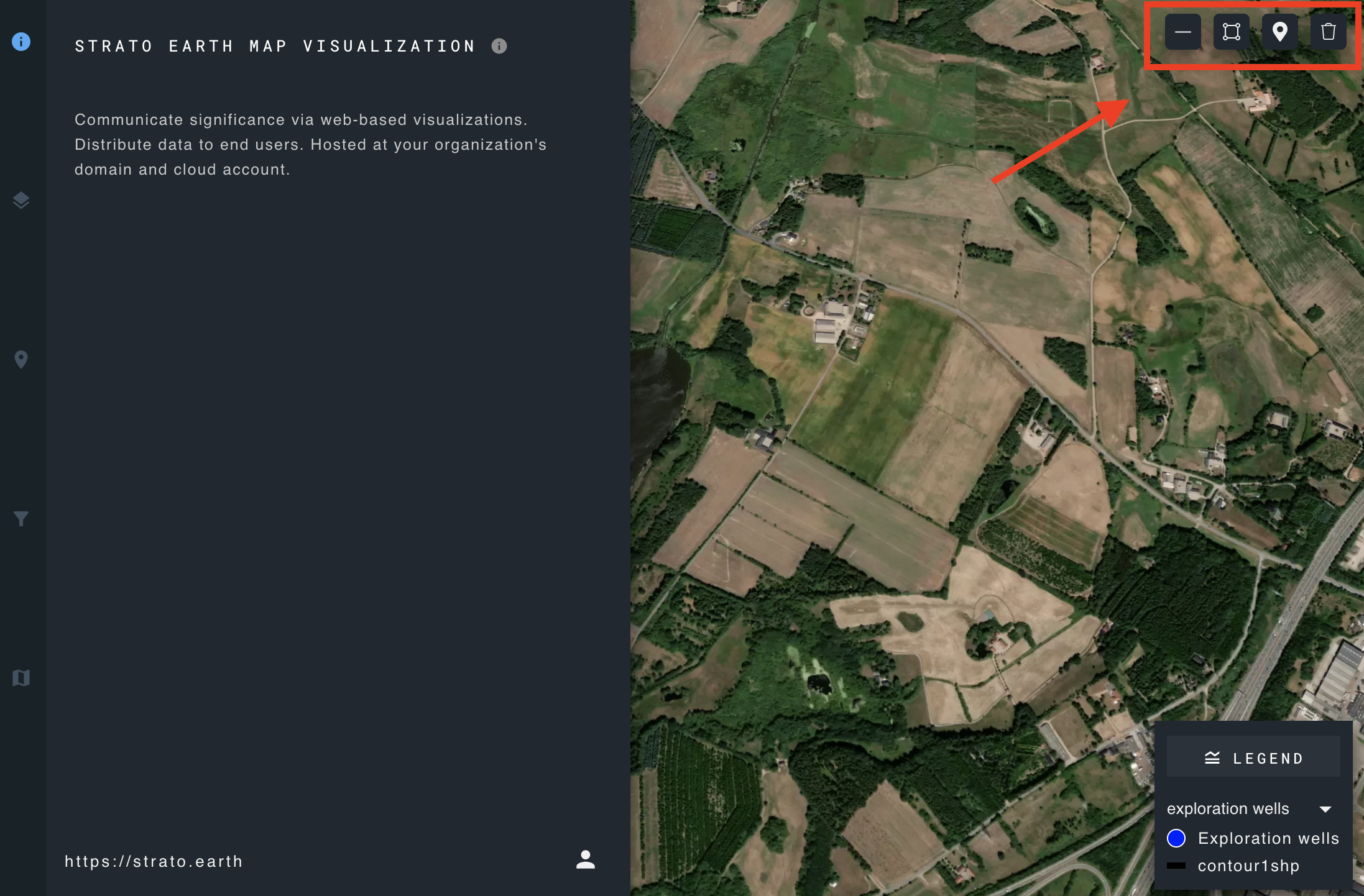
- Hide legend:
Enable or disable the map legend.
- Disable map rotation:
Enable or disable map rotation to control whether users can rotate the map.
- Select default map on load:
Select the map which will be displayed when the application first loads.
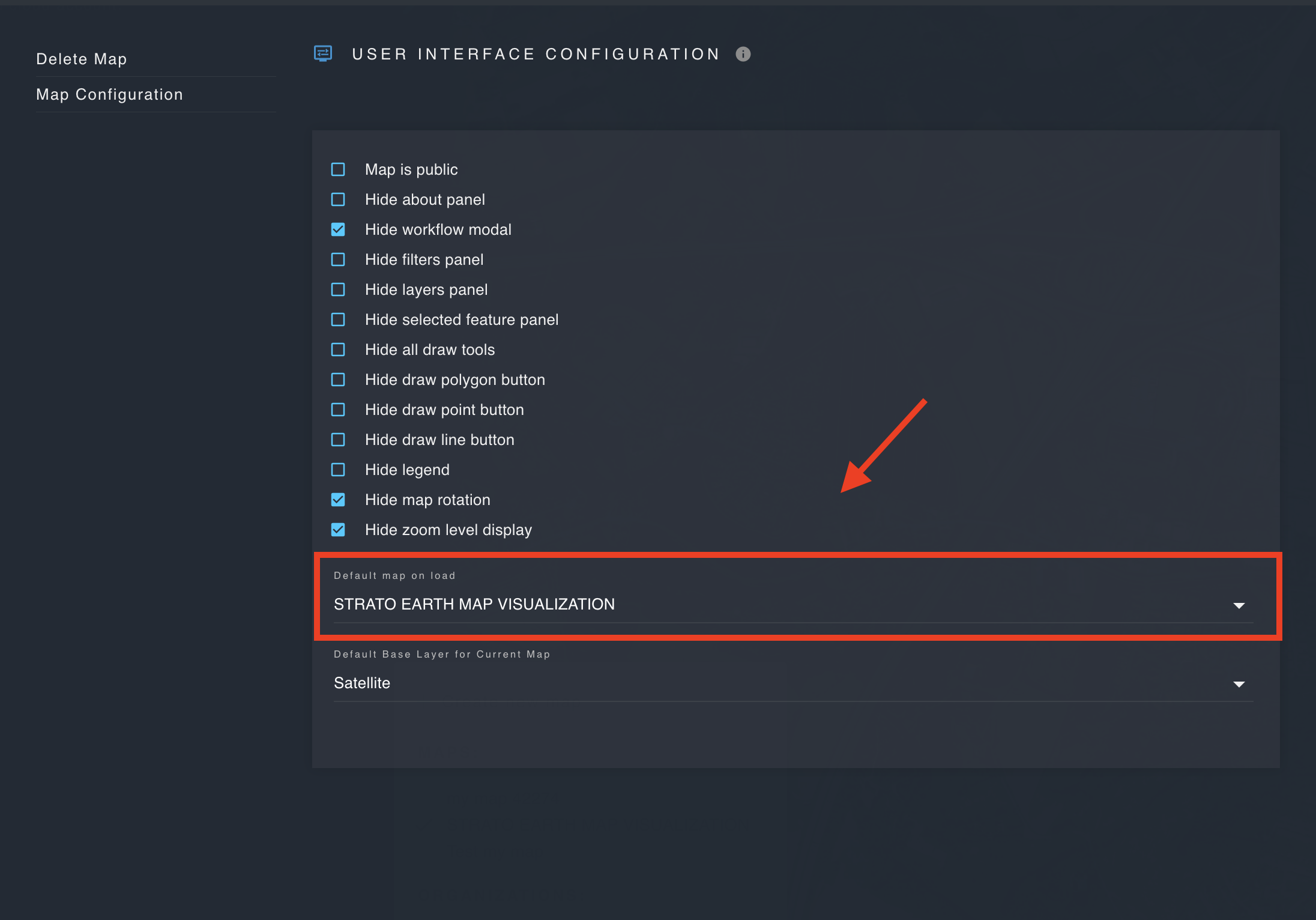
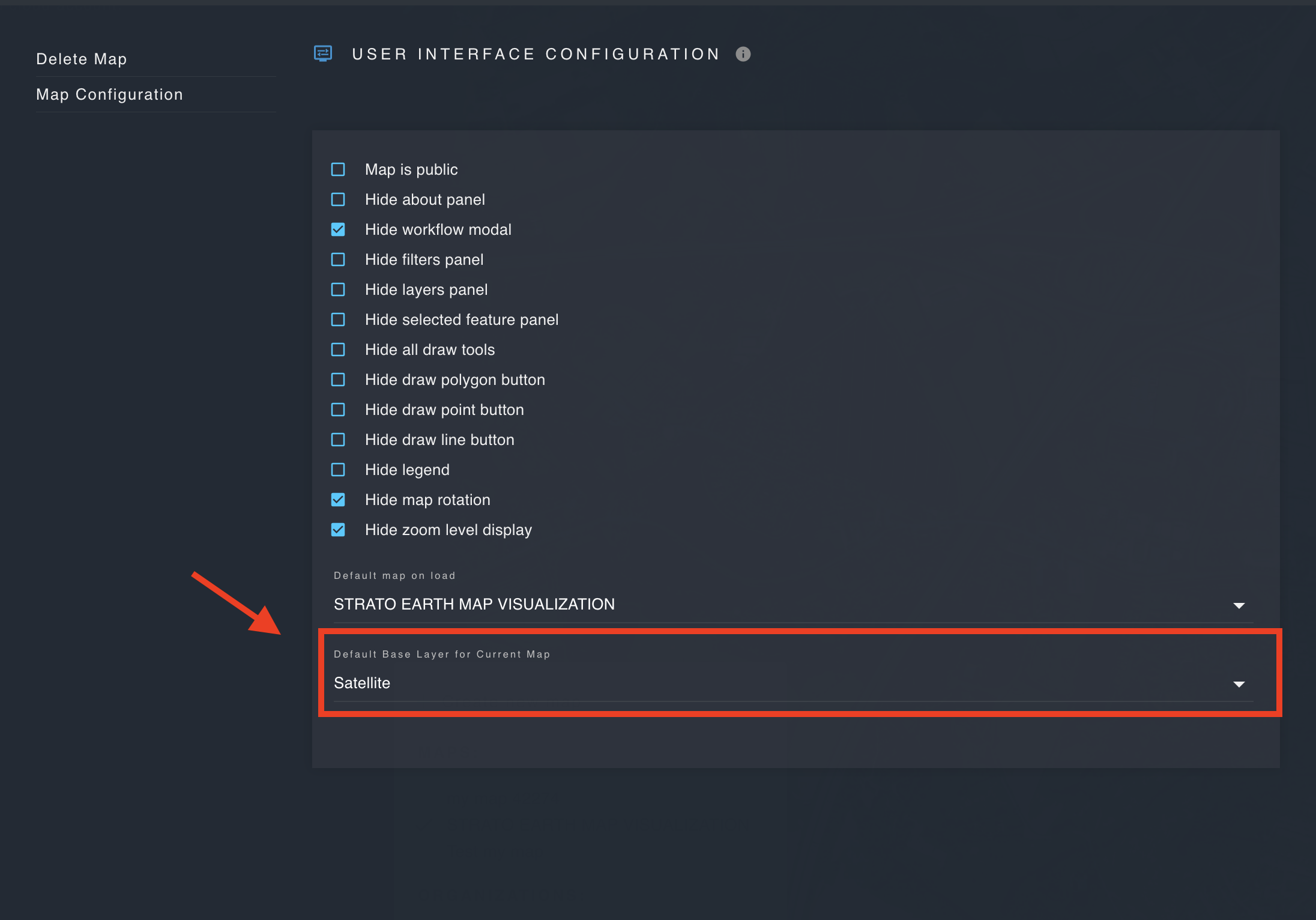
- Select default base layer for current map:
A basemap layer sets the visual context for a map. It displays geographic details such as terrain, roads, water bodies, buildings.
Specify the current map's default base layer on load.